
How to turn a spare laptop into a Linux server
The setup I use: Ubuntu Server, SSH from Windows, Docker, Cloudflare Tunnel, and a Cockpit dashboard with battery and display pages.
My experience note describes what runs on my 8 GB Core i5 laptop. This guide explains how to build a similar setup, starting with one service and adding the laptop-specific pieces afterward.
The commands below are examples for a fresh Ubuntu Server 24.04 installation. Replace the username, address, domain and application paths with your own. Hardware-specific steps need checking on your laptop.
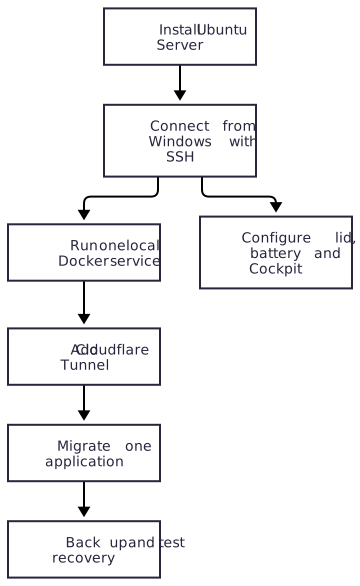
1. Prepare the laptop
Back up the files you want to keep before installing Linux. Installation can erase the selected disk. I used the server edition of Ubuntu without a desktop interface.
Download the installation image (ISO) from the official Ubuntu Server website. My setup uses Ubuntu Server 24.04 LTS. To follow the same version, look under previous releases if the main download button offers a newer release.
I used Rufus on Windows to prepare a hard disk as bootable installation media. It worked, but for a first attempt I would use a USB flash drive. It makes it easier to keep the installer separate from the laptop’s disk where Ubuntu will be installed.
In Rufus, select the drive you intend to use as installation media, choose the downloaded ISO, and write the image. Preparing that drive can erase its contents, so check the selected device carefully. Then boot the laptop from that drive using its boot menu and follow the Ubuntu installer.
My installation was not completely smooth. I ran into errors while choosing file locations and a few other setup problems. I worked through them and had them resolved within a day. If your first attempt needs some troubleshooting, that does not mean you cannot do this. Take one problem at a time, and double-check the selected disk before confirming storage changes.
Use a working charger, sound battery and ventilated surface. A swollen battery needs replacing before continuous use. Ethernet is useful if available; mine uses Wi-Fi, which adds another dependency to availability.
During installation, create a normal user and select OpenSSH server. Once the machine has network access, check it at the physical keyboard:
ip -br address
lscpu
free -h
df -h
sudo apt update
sudo apt upgrade
If OpenSSH was not installed:
sudo apt install openssh-server
sudo systemctl enable --now ssh
Ubuntu documents the installation and configuration in its OpenSSH server guide.
2. Connect from Windows Terminal
In PowerShell, use the address shown on the Ubuntu laptop:
ssh your-user@YOUR_SERVER_ADDRESS
On the first connection, compare the host-key fingerprint with the server before accepting it. You can display the server’s ED25519 fingerprint at its own keyboard:
sudo ssh-keygen -lf /etc/ssh/ssh_host_ed25519_key.pub
Create a Windows SSH key if you do not already have one. Keep the private key on Windows; only its .pub file goes to the server. A passphrase protects the key if the file is copied.
ssh-keygen -t ed25519
Get-Content "$env:USERPROFILE\.ssh\id_ed25519.pub" | ssh your-user@YOUR_SERVER_ADDRESS "umask 077; mkdir -p ~/.ssh; cat >> ~/.ssh/authorized_keys"
ssh your-user@YOUR_SERVER_ADDRESS
For a shorter command, add an entry to your Windows user SSH config, ~/.ssh/config:
Host spare-server
    HostName YOUR_SERVER_ADDRESS
    User your-user
    IdentityFile ~/.ssh/id_ed25519
Then ssh spare-server opens the Linux terminal. The server keeps running when that terminal closes. A DHCP reservation helps keep its address stable if you control the router.
3. Keep the laptop awake
On Ubuntu, create a logind drop-in rather than modifying the main configuration file:
sudo mkdir -p /etc/systemd/logind.conf.d
sudo tee /etc/systemd/logind.conf.d/10-laptop-server.conf >/dev/null <<'EOF'
[Login]
HandlePowerKey=ignore
HandleLidSwitch=ignore
HandleLidSwitchExternalPower=ignore
HandleLidSwitchDocked=ignore
EOF
sudo systemctl reload systemd-logind
Check the effective setting:
busctl get-property org.freedesktop.login1 /org/freedesktop/login1 org.freedesktop.login1.Manager HandleLidSwitch
It should report ignore. Close the lid and confirm that SSH still works. Keep the vents clear; some laptops cool poorly with the lid closed. Shut down deliberately with sudo systemctl poweroff.
My own configuration also requests a clean shutdown on a long power-button press. Firmware can cut power before the software reacts, so I do not rely on that as a safe shutdown method.
Ignoring the lid does not necessarily turn the panel off. My separate acpid hook reads the lid state and writes the panel’s bl_power setting. The screen behaviour depends on hardware, so test screen control separately before automating it.
4. Install Docker and run one service
Follow Docker’s Ubuntu installation guide to add its signed APT repository. After that repository is configured:
sudo apt install docker-ce docker-ce-cli containerd.io docker-buildx-plugin docker-compose-plugin
sudo systemctl enable --now docker
sudo docker run --rm hello-world
sudo docker compose version
Here is a small first service. On the server, create ~/first-service/compose.yaml:
services:
  web:
    image: nginx:stable-alpine
    restart: unless-stopped
    ports:
      - "127.0.0.1:8080:80"
    mem_limit: 128m
    cpus: 0.5
    logging:
      driver: json-file
      options:
        max-size: "10m"
        max-file: "3"
Start and check it from that directory:
sudo docker compose up -d
curl -I http://127.0.0.1:8080
sudo docker compose logs --tail=30
sudo docker stats --no-stream
The loopback binding keeps the example off the LAN. From Windows, forward it through SSH:
ssh -N -L 8080:127.0.0.1:8080 spare-server
While that connection stays open, visit http://localhost:8080 in your Windows browser. You should see nginx’s welcome page. The image tag follows a release channel; pin a tested digest when you need a reproducible deployment.
For a real app, replace the image, add the correct environment and health check, and give databases named volumes. Set memory limits based on measured peaks. Several 2 GiB limits do not mean the host has enough RAM to satisfy them simultaneously.
5. Give a service a public address
I use Cloudflare Tunnel, which connects outward from the server. I did not need an inbound router port-forward for the website. A tunnel provides the route; the application still needs its own authentication where appropriate.
Follow Cloudflare’s locally managed tunnel instructions to install cloudflared, log in, create a tunnel and protect its credential file. My deployment uses local configuration; Cloudflare also offers remotely managed tunnels.
For a fresh named tunnel, the creation commands are:
cloudflared tunnel login
cloudflared tunnel create spare-server
An illustrative configuration is:
tunnel: YOUR_TUNNEL_ID
credentials-file: /etc/cloudflared/YOUR_TUNNEL_ID.json
ingress:
  - hostname: demo.example.com
    service: http://127.0.0.1:8080
  - service: http_status:404
The credential path must match where you securely installed the generated file. Add the hostname under a domain you control:
cloudflared tunnel route dns spare-server demo.example.com
sudo cloudflared tunnel --config /etc/cloudflared/config.yml ingress validate
sudo cloudflared --config /etc/cloudflared/config.yml service install
sudo systemctl enable --now cloudflared
These service-install commands are for a new setup. An existing tunnel should be backed up and edited without reinstalling its service. Test the local endpoint first, then the public hostname. Cloudflare explains rule order and the final catch-all in its configuration reference.
6. Add Cockpit and the laptop pages
Cockpit gives me system metrics, services, logs, storage and a terminal. On my Ubuntu 24.04 server I installed individual components from backports:
sudo apt install -t noble-backports cockpit-bridge cockpit-ws cockpit-system cockpit-storaged pcp
sudo systemctl enable --now cockpit.socket
sudo systemctl enable --now pmcd pmlogger
This assumes the noble-backports repository is enabled. I avoided adding Cockpit’s NetworkManager component because this machine already uses netplan with systemd-networkd for Wi-Fi. Check the package changes before accepting them on a machine managed over SSH.
Keep administration on a trusted network or VPN. You can also forward Cockpit from Windows with ssh -N -L 9090:127.0.0.1:9090 spare-server and open https://localhost:9090. Its default certificate is self-signed; verify the server identity before trusting it. The forward does not itself restrict the server’s listening socket.
The Battery page
I included the actual source files from my server with this guide:
Save all five together in ~/cockpit-battery on your server, review the files, then run:
sh ~/cockpit-battery/install.sh
cockpit-bridge --packages
The script copies the package to /usr/share/cockpit/battery/. Reload the Cockpit browser session; if necessary, sign out and back in. You should see Battery in the menu.
It reads /sys/class/power_supply/ without elevated privileges. It finds devices by their type instead of assuming BAT0, supports both energy_* and charge_* readings, and pauses its five-second polling while hidden. It uses design voltage to convert charge capacity to watt-hours when available.
The Display page
The matching files are manifest, HTML, JavaScript, CSS and installer. Save them in ~/cockpit-display.
Adapt display.js before installing it. My version uses intel_backlight, /dev/tty1, and Uni2-TerminusBold console fonts. Check your backlight directory and available font files:
ls /sys/class/backlight
ls /usr/share/consolefonts/Uni2-TerminusBold*
Change BRIGHTNESS_PATH, MAXB_PATH, BLPOWER_PATH, TTY, FONT_PREFIX and FONT_SIZES as needed. The page reads the actual maximum brightness, so it does not assume a 0–255 range. Then run sh ~/cockpit-display/install.sh and reload Cockpit.
Display writes require Cockpit’s administrative access. One detail cost me time: cockpit.spawn() takes process input through .input(), rather than an input option:
var proc = cockpit.spawn(["tee", path], {
    superuser: "require",
    err: "message"
});
proc.input(value);
return proc;
For sysfs, use a direct write like this. A temporary-file-and-rename operation cannot replace a sysfs attribute. Cockpit documents packages and process spawning.
I also use Portainer and a third-party Docker Manager plugin for container management. Docker Manager is optional. Access to Docker or its socket gives extensive control of the host, so these belong behind restricted administration access.
7. Configure battery charging separately
My Battery page monitors; it does not set limits. A separate boot service applies 75% start and 80% stop thresholds through Huawei’s driver.
Inspect the interfaces your hardware exposes:
ls /sys/class/power_supply
find -L /sys/class/power_supply/ -maxdepth 2 -name '*threshold*'
On my supported Huawei model, the paired attribute exists at the following path:
cat /sys/devices/platform/huawei-wmi/charge_control_thresholds
printf '75 80\n' | sudo tee /sys/devices/platform/huawei-wmi/charge_control_thresholds
This is a Huawei-specific example, not a command for every laptop. Check your driver’s documentation and firmware first. Make a persistent boot service only after a manual test works.
On my machine, smart-charge firmware initially ignored these settings even though the driver read them back correctly. My boot script disables that mode before applying the pair. The Huawei WMI project describes that hardware-specific behaviour; do not copy its low-level firmware calls to an unrelated model.
Watch the charge percentage, AC state and current over time, then verify again after a reboot. Reading back 75 80 alone does not prove the battery obeys it. Mine can say “Not charging” or “Discharging” on mains while above the charging range.
8. Move one cloud application at a time
Before cutting over, list the code, database, uploaded files, secrets, scheduled tasks, domain routes and external APIs. Recreate each dependency or deliberately keep it hosted. An application image does not contain its database volume.
| Previous component | My local replacement | What needs checking |
|---|---|---|
| Railway Wagtail application | Docker application container | Settings, allowed hosts, migrations, secrets and local health |
| Railway PostgreSQL | PostgreSQL container and named volume | Compatible version, dump/restore, data and permissions |
| AWS scheduled scraper | Docker job started by a systemd timer | Timezone, duplicate checks, logs and successful writes |
| Lambda personal search | FastAPI service and supporting database stack | Request contract, authentication, timeouts and frontend endpoints |
| Public cloud endpoint | Cloudflare hostname routed to local loopback port | Public response, login and application behaviour |
Railway: app and database together
My Wagtail move used pg_dump -Fc and pg_restore, with PostgreSQL 16 on both sides. I checked page counts and the latest publication timestamp before routing the public domain to the laptop.
My Railway PostgreSQL note shows the original application connection and settings.
For your own move, stop application writes for the final dump, or use a replication strategy. Restore into the local database, apply the app’s required migrations, and test through a temporary route or SSH forward. Keep credentials out of shell history and committed files.
Check TLS settings too. My app previously forced database SSL for Railway; the local database did not provide that SSL listener. I changed that setting only for the container-local connection. Public traffic remains HTTPS through Cloudflare.
Keep the old deployment until the cutover is verified. Once the local database accepts new writes, the old database becomes stale: rollback needs a plan for those writes, not just a DNS change.
AWS: replace schedules and execution assumptions
For a scheduled job, use a oneshot systemd service that runs the scraper container, plus a timer. An illustrative timer is:
[Unit]
Description=Daily scraper schedule

[Timer]
OnCalendar=*-*-* 02:00:00 Europe/Amsterdam
Persistent=true
Unit=my-scraper.service

[Install]
WantedBy=timers.target
This needs a matching my-scraper.service with the correct working directory and container command. Persistent=true catches up a missed run when the timer becomes active again. Check the timezone and next run rather than assuming it matches the old cloud schedule.
Verify one local run, its database writes and duplicate handling before enabling the timer and disabling the old AWS schedule. Do not leave two writers running unintentionally. My JobLab scraper uses local PostgreSQL; an earlier hosted-upload configuration was corrected and is not the current route.
For Lambda, adapt the event handler into an HTTP application, or use an appropriate adapter. Replace IAM-role assumptions, keep external cloud APIs explicitly configured, and check timeouts, concurrency and access control. My personal-search deployment still had an unauthenticated search endpoint in its deployment record, so I would add authentication and rate limits before recommending that pattern for another public service.
9. Keep it recoverable
My regular checks are small:
free -h
df -h
sudo docker stats --no-stream
sudo docker compose ps
sudo docker compose logs --tail=50
systemctl list-timers --all
sudo journalctl -u cloudflared -n 30
Run the Compose commands inside the relevant application directory. Look at available memory, swap activity, disk space and the last successful scheduled job. A running container is not proof that its application is healthy.
Use database-aware backups, keep a copy off this laptop and practise a restore into a separate database. Some of my stacks have nightly backups, but a backup on the same disk does not protect against losing that disk. Retain working application releases and record how to restore their matching database state.
Test restart behaviour during planned maintenance, with backups and physical access available. Check Docker, the tunnel, timers and actual public endpoints afterward. Avoid rebooting a production host just to demonstrate a guide.
Restrict SSH and dashboards. Docker’s published ports can bypass ordinary UFW rules, as its firewall documentation explains. My loopback-bound public application ports are reached through the tunnel, but administration access needs its own restrictions.
How to repeat this
Start with Ubuntu, a working SSH connection and the nginx example. Once you can start it, inspect it and bring it back after a planned restart, move one small application with a tested backup.
Add the Battery page first because it only reads hardware state. Add Display and charging control after checking your laptop’s interfaces. The server does not need every feature on day one.
What went wrong
My useful lessons were mundane: the short power-button press shut the server down, battery thresholds looked correct but were ignored, and the Display page stalled because process input was passed the wrong way. Another migration briefly used the wrong database destination.
Those mistakes made me check effective settings, charging behaviour and actual writes. If you try this, keep a short record of what you changed and how you verified it. That record is often more useful than another dashboard.